

Share


Oliver Feldenberg, February 9. 2026
Get the Best watsonx Solution
for Your Business Today!
Watsonx Orchestrate has changed in a lot of ways since its initial release a couple of years ago. The current agent is like the earlier AI assistant, though the emphasis on agentic AI has increased. Orchestrate also now has pro-code features that allow developers to create highly customized AI-powered agents and workflows. That said, the no-code agent builder has come a long way, too. The three types of actions have essentially been merged to create a streamlined, but more robust experience for low-code developers. If you’re coming from the old Orchestrate or seeing the platform for the first time, it may be confusing to navigate and know where to begin. Here, you’ll see what the new agent builder looks like, the features available, and some tips on how to quickly set up your first agent in Watsonx Orchestrate.
Table of Contents
Getting Started
To get started, go to the build page in your Watsonx Orchestrate instance. Here, you’ll see all the agents available in your instance. If this is a fresh Orchestrate environment, you may only see the AskOrchestrate – this is a sample agent which may also be helpful to get yourself familiarized with the no-code agent building process.
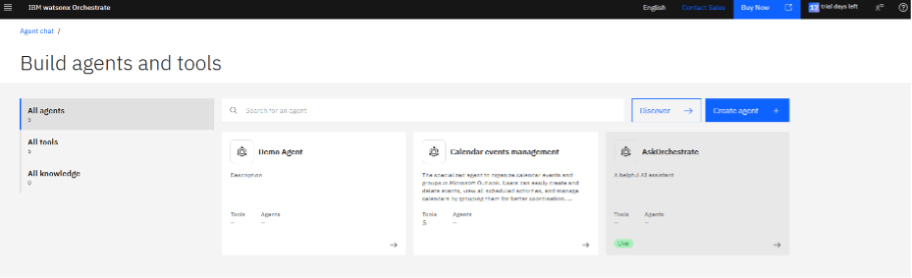
Click “Create Agent” toward the top right of the page to see options for creating your agent.
Build with AI Preview
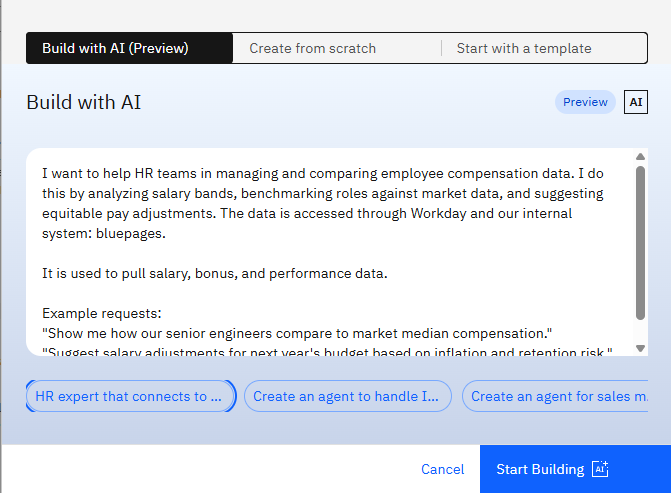
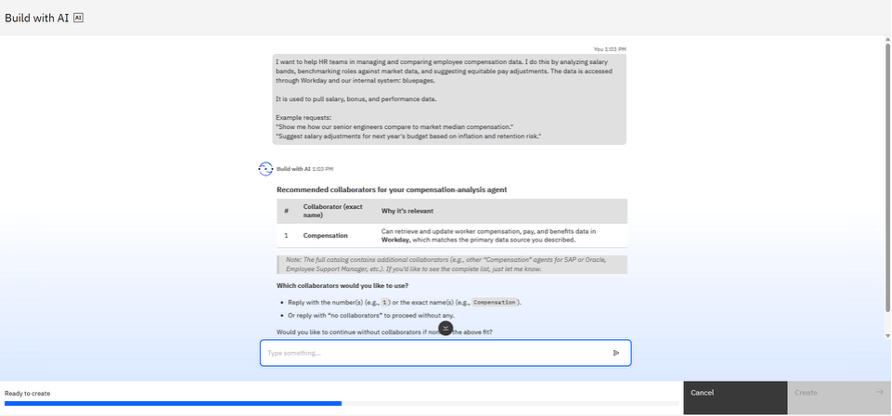
The first option is the build with AI preview. This is an even faster way to get started building your agent. You’ll need to type into the dialogue box information about what you need the agent to do, what systems to use, and limitations. Then, you’ll be redirected to a chat where the AI will make recommendations that you can then approve or change. A bar at the bottom will show you how close the AI is to being ready to create your agent. Keep in mind that you’ll need to connect services and likely make tweaks to the assistant before moving to production. This is a great way to get started when you know what you want from the agent and need to save time by letting the AI give you something to iterate on.
Start with a Template
Another great option is to start with a template. This is a little less personalized than the build with AI option, but these pre-built templates just need a connection to your services to start working. There’s a growing list of templates you can use, with helpful features like a search bar, categories, and applications leveraged to direct you to templates that will be most helpful to you. Once you pick one, you can get into the agent and refine it to suit your organization’s needs.
Create from Scratch
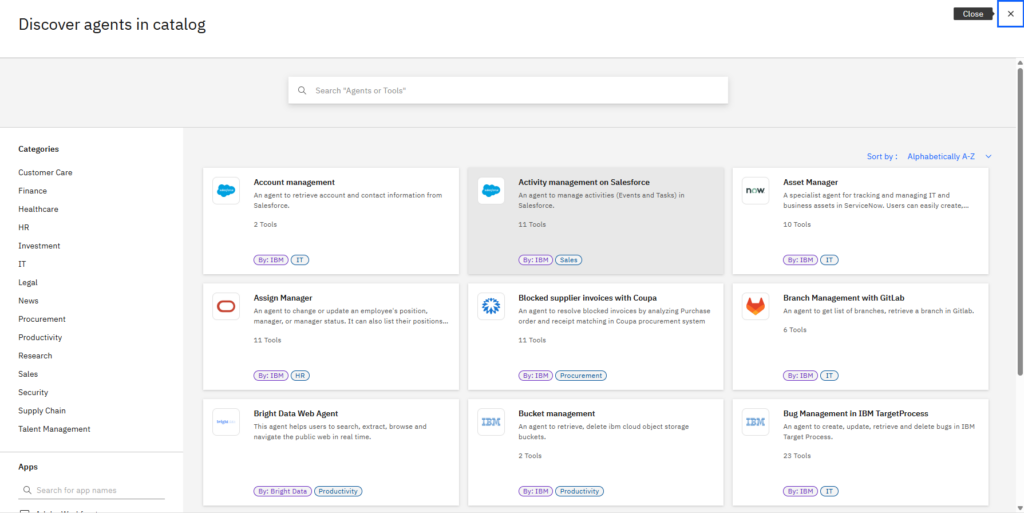
Finally, you can create an agent from scratch. All you need to do is add a name and description to get working on your agent.
Agent Building Process
Now that you know how you can kick-start the agent making progress, let’s take a look at the actual agent-building process. This agent was taken from a template provided by Watsonx Orchestrate.
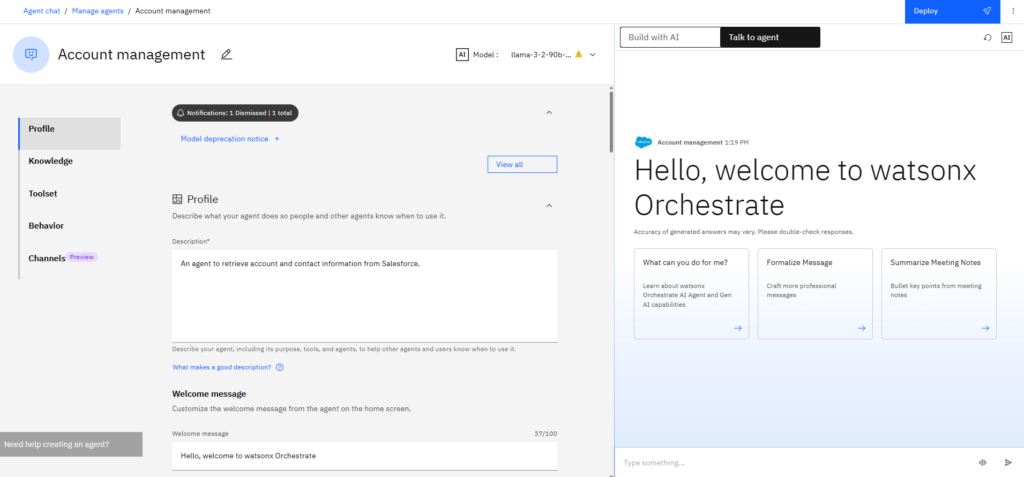
On the left side of the screen is where you customize and build the agent. On the right side, you can chat with the agent you’re building. Remember to test your changes as you’re making them to validate the agent. Now, let’s focus on the left side where we build the agent.
At the very top, you can change the name of the agent and select the model to use. This account management agent is using the llama-3-2-90b-vision-instruct model, but other models are available in Orchestrate. Further down, you can change the description of the model, customize a welcome message to greet your users, and add quick start prompts which help guide the users into suggested conversation paths.
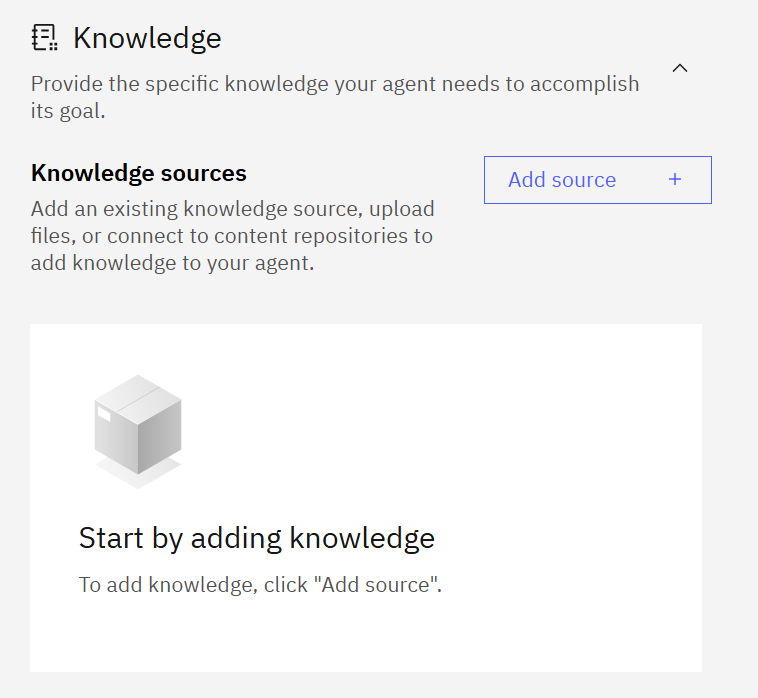
As you scroll further down, the true building blocks of the agent can be set. First, there’s knowledge sources which allow you to upload files that the agent can work with to provide answers and guidance to the user. This rules out the agent searching the web or taking knowledge from sources not approved by the organization. When you upload knowledge, you can easily reuse those sources in other agents the next time you go to add knowledge.
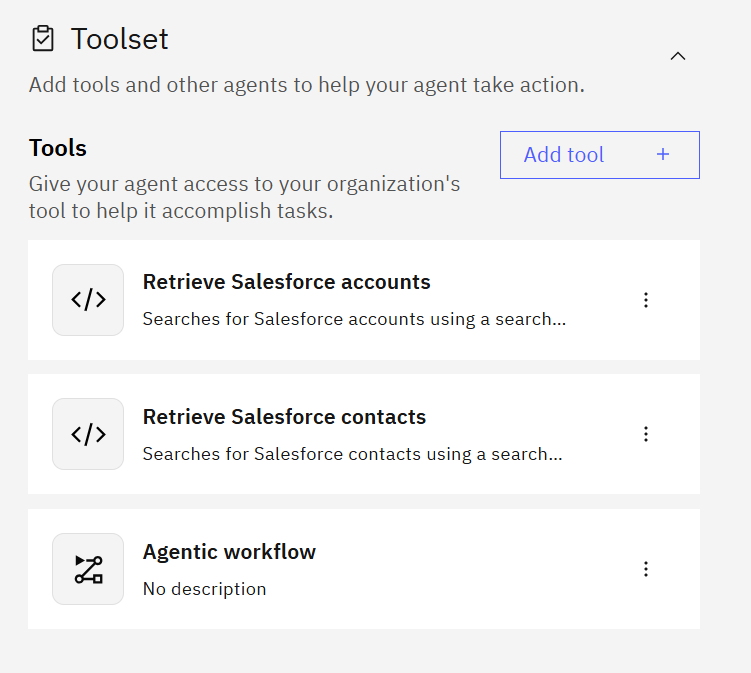
Next, put together your toolset so your agent has access to applications to leverage to complete requests for the user. Simple tools can complete single API requests, such as sending an email or adding an event to your calendar, but agentic workflows can build more complex automations to complete several actions at a time, leveraging data between steps.
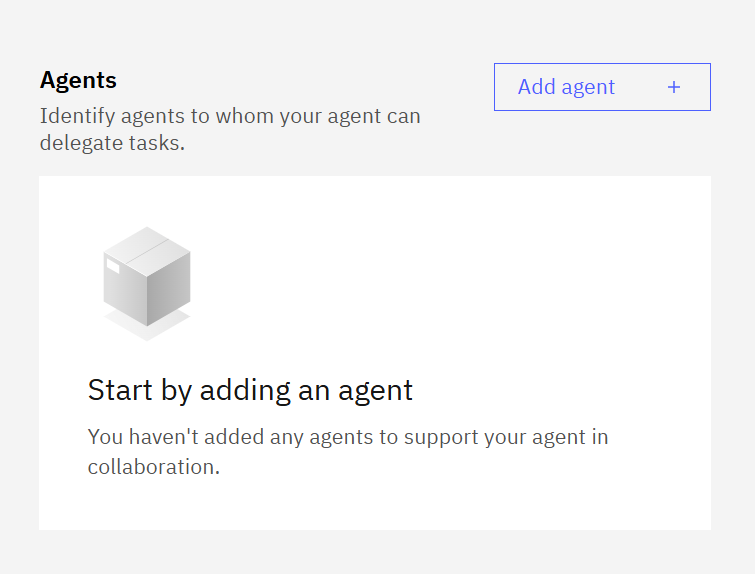
To further specialize your agent, you can even add other agents to the one you’re building. Your agent can delegate tasks to other agents with the right skills and knowledge suited to the user’s request. This is helpful when you have simpler tasks that need to be repeated in several different agents. Instead of manually entering the knowledge and tools every time, just allow your agents to collaborate.
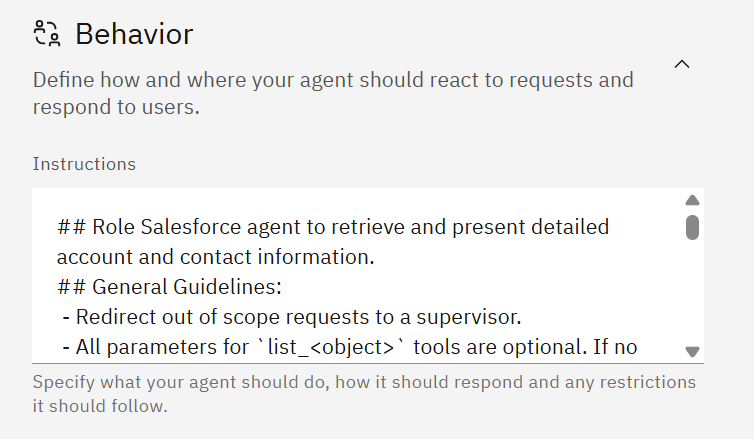
Once you’ve built out the basic functionality of the agent, you need to tune its behavior. The behavior section allows you to write instructions on how the agent will respond to the user. This can include how the agent answers questions and detailed instructions to help the agent perform requests without requiring strict request formatting on the user side.
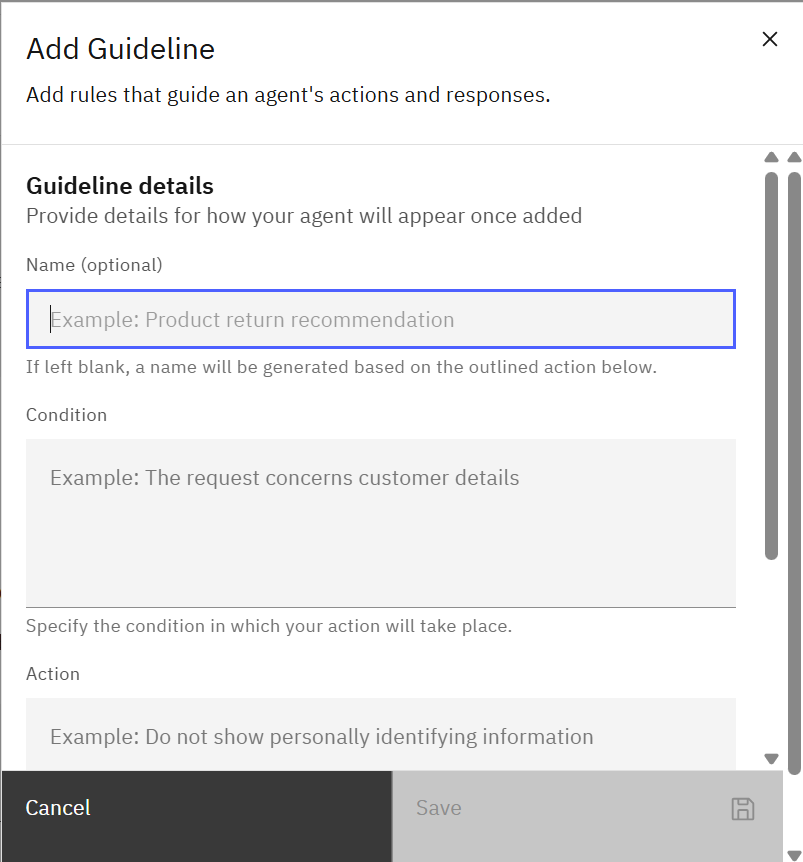
Guidelines allow you to create even more rules to govern how the agent acts and responds. You can provide conditions and actions in each guideline, directing the agent on how to respond to different scenarios it might encounter while helping the user.
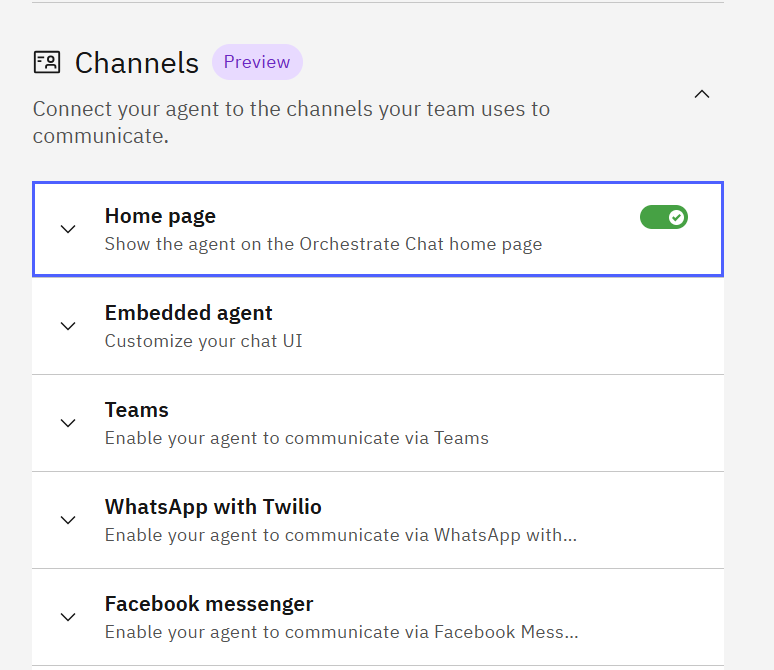
Finally, decide where users will interact with the agent in the channels section. Watsonx Orchestrate supports interaction directly on the platform, but you can also embed the agent into your custom website or leverage popular work platforms such as Teams and Slack. All you need to do is select the options you’re interested in and set up the connection.
Conclusion
Congratulations, you’ve just built your first AI Agent in Watsonx Orchestrate! This is just the first step to build complex, AI-powered automations for your use cases. You’ll likely need to iterate on your agents until you get them to behave exactly the way you want them to. If your team doesn’t have a Watsonx Orchestrate environment already, you can easily request a 30-day free trial using an IBM account or book a live demo with IBM. With lots of templates, AI assisted building, and a growing Watsonx Orchestrate community, your team can quickly jump into development and create the right agents for your organization. If you need more help getting started, reach out to PMsquare today to see how we can help you put AI to work.
Make sure to also subscribe to our Newsletter for more PMsquare articles, updates, and insights delivered directly to your inbox.